Map Download Sample
This sample shows how to download, switch and use the constructed map at runtime.
This sample requires a valid Developer Token from our Developer Portal
Open the MapDownloadSample scene found in the "Assets/Samples/Immersal SDK Core/2.x.x/Core Samples/Scenes/" folder.
Using Your Maps
You can log in to the Developer Portal and download a map file if you wish to also embed a map into the sample.
But in this sample all your constructed maps are available in the app itself.
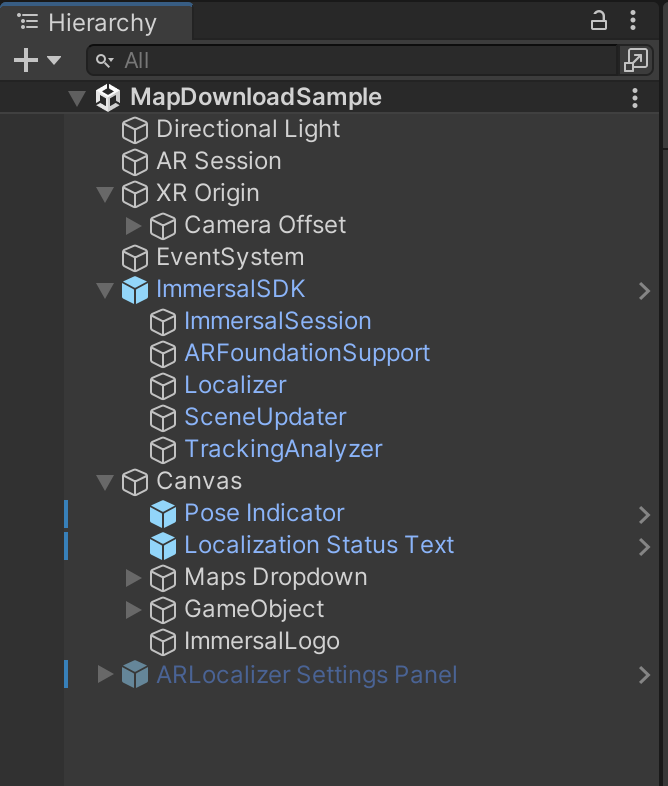
Overview of the scene
The scene is very similar to the Multimap sample.
Using the sample
- Place your downloaded map file into the XR Map game object's map file slots in the inspector or leave it empty.
- Open Build Settings (Ctrl + Shift + B) and make sure only the MapDownloadSample is included in the Scenes in Build.
- Change your Player Settings if necessary. It's a good idea to change the Product Name and Package Name so the app will not overwrite a previously installed app on your device.
- Build the app and install it to your devices.
When you start the app and look around at a location you have mapped, the device should localize and find a pose in just seconds.
If you click the dropdown menu, you can download and switch to other maps.